

Google Gemini is an advanced AI assistant that can help you brainstorm ideas, write content, answer questions, and solve problems—all completely free. Many people don’t realize how accessible this powerful tool has become, or they’re unsure where to start. Whether you’re a student, professional, or curious learner, understanding how to use Google Gemini for free opens up a world of possibilities for productivity and creativity.
Getting started is straightforward. You’ll need a Google account (which most people already have), and you can access Gemini through your web browser or mobile app. From there, you can start conversations, upload files, generate images, and use various features without paying a dime. The free tier gives you plenty of power to accomplish real work, from writing assistance to coding help and research support.
Key Takeaways
- Access Google Gemini free through any web browser or mobile app with a Google account
- The free version includes text conversations, image generation, file uploads, and most core features
- Effective prompting—being clear and specific in your requests—dramatically improves response quality
- Gemini excels at writing, research, coding assistance, brainstorming, and problem-solving tasks
- Understanding limitations and best practices helps you get maximum value from the free tier
Getting Started with Google Gemini
Before you can start using Gemini, you’ll need a Google account. If you use Gmail, YouTube, or any other Google service, you’re already set. If not, creating one takes just a few minutes and is completely free. Head to Google Accounts and follow the simple registration process.
Once you have an account, navigate to gemini.google.com in your web browser. You’ll see a clean, intuitive interface with a text box at the bottom where you can type your questions or prompts. The layout is familiar to anyone who’s used a chatbot before—straightforward and distraction-free.
Creating Your First Conversation
Click on the text box and type your first message. This could be anything: a question you want answered, a writing task, a coding problem, or even a creative prompt. Press Enter or click the Send button, and Gemini will respond within seconds. Each new conversation starts fresh, giving you a blank slate to explore different topics or tasks.
The conversation history appears on the left sidebar, making it easy to jump between different chats. Right-click on a conversation title to rename it for better organization. This is especially useful if you’re working on multiple projects simultaneously.
Accessing Gemini on Mobile
If you prefer working on your phone or tablet, download the Google Gemini app from the Google Play Store (Android) or the Apple App Store (iOS). The mobile experience mirrors the desktop version, so you can continue conversations on the go. The app also includes voice input, letting you speak your prompts instead of typing—particularly handy for quick questions when you’re away from your computer.
You can snap photos with your mobile camera and ask Gemini to analyze them, which opens up practical uses like translating text in images or identifying objects.
Understanding the Free vs. Premium Options
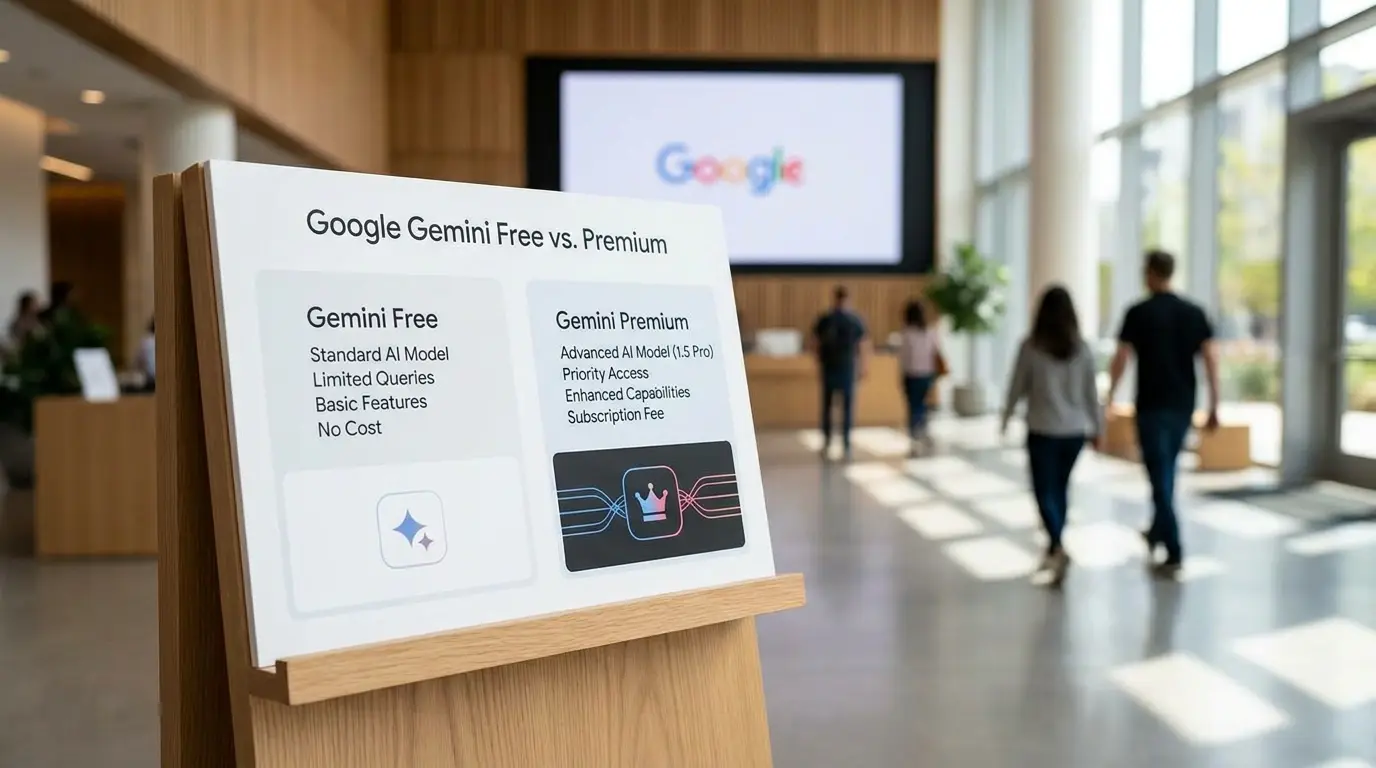
Google offers Gemini completely free, with no time limits or conversation caps. You can chat as much as you want without hitting paywalls or restrictions. However, it’s worth understanding what comes with the free tier versus what would be available with Google One Premium.
What’s Included in the Free Version
- Unlimited text conversations and responses
- Image generation with Gemini (limited daily usage compared to premium)
- File uploads (documents, images, PDFs) for analysis
- Web search integration to find current information
- Video and audio understanding capabilities
- Access to Gemini’s latest models
- Conversation history and management tools
In practice, the free version covers virtually everything most users need. You can generate images, upload documents for summarization, search the web, and maintain complex conversations. The capabilities are genuinely impressive for a free tool.
Premium Tier Benefits
Google One Premium (around $20 per month) provides higher rate limits, priority access to advanced features, and more daily image generations. You also gain access to Gemini 2.0 with enhanced reasoning capabilities and larger processing limits. Most beginners and casual users find the free tier sufficient for their needs.
A common assumption is that you need premium features to get real value from Gemini. Most productivity benefits are available in the free version. Only consider upgrading if you hit rate limits (unlikely with casual use) or need features specifically marked as premium-only.
Step-by-Step Guide to Using Gemini
Here are the fundamental steps to use Google Gemini effectively. Following these will help you understand the workflow and maximize your results.
Step 1: Access Gemini and Sign In
Open your web browser and go to gemini.google.com. If you’re not already signed in, click the “Sign in” button in the top right corner and enter your Google account email and password. On a mobile device, open the Gemini app and sign in with the same Google account. You should now see the main chat interface with an empty conversation ready to start.
Step 2: Craft Your First Prompt
Click on the text input box at the bottom of the screen and write your prompt or question. Be as specific as possible—instead of “Tell me about dogs,” try “Tell me five interesting facts about German Shepherds as working dogs.” Specificity helps Gemini provide more relevant and useful responses. When you’re ready, press Enter or click the Send button (paper plane icon).
Step 3: Review Gemini’s Response
Gemini will display its response in the chat window. Read through it carefully. If the response is helpful, proceed to your next question. If you’d like clarification or follow-up information, simply type another message. Your previous messages appear in the conversation history above, providing context for Gemini to understand your ongoing discussion.
Step 4: Use Additional Features
Beyond basic text prompts, Gemini offers several additional options accessible through icons near the text input:
- Attach files: Click the paperclip icon to upload documents, images, or PDFs for Gemini to analyze
- Generate images: Use the image icon to create pictures based on text descriptions
- Voice input: Click the microphone icon to speak your prompt instead of typing (on mobile and some desktop versions)
- Web search: Enable web search to have Gemini pull current information from the internet
Step 5: Manage Your Conversation
As you continue chatting, Gemini maintains the conversation context. On the left sidebar, you’ll see your conversation listed. To start a new, separate conversation, click the “+” button or “New chat” option. To organize your conversations, right-click on a conversation title to rename it or delete it. This keeps your Gemini workspace organized as you work on multiple projects.
Practical Use Cases and Tips
Understanding what Gemini can do is one thing; knowing how to use it effectively is another. Here are real-world applications and strategies that produce strong results. If you’re looking to boost your overall productivity toolkit, our guide to free AI tools for daily work provides additional context on how Gemini fits into a broader ecosystem of useful resources.
Writing and Content Creation
One of Gemini’s strongest applications is writing assistance. Whether you’re drafting an email, essay, blog post, or creative story, Gemini can help. Try prompts like “Write a professional email requesting a meeting with my manager” or “Help me outline a 1,500-word article about sustainable living.”
What works well is providing context about your audience and purpose. Instead of asking for a piece of writing, specify the tone, length, and intended reader. For example: “Write a friendly, informative introduction to a blog post about productivity tools for students, around 200 words.” This produces better results than vague requests.
Research and Learning
Use Gemini to research topics, understand complex concepts, or explore new subjects. Ask it to explain quantum physics in simple terms, break down historical events, or teach you about different career paths. Gemini excels at taking complex information and making it accessible.
Ask follow-up questions if the initial response isn’t clear. Say “Explain that more simply” or “Give me an example of how that works in real life.” This iterative approach helps you truly understand the subject matter rather than just reading surface-level information.
Coding and Technical Help
Whether you’re learning to code or debugging existing code, Gemini provides valuable assistance. Paste a code snippet and ask what it does, request help fixing an error, or ask for examples of how to accomplish something in a specific programming language. Gemini supports Python, JavaScript, Java, and virtually every mainstream language.
Include relevant context when asking coding questions. Share the error message, what you’re trying to accomplish, and the relevant code snippet. This helps Gemini provide accurate, targeted solutions instead of generic advice.
Brainstorming and Creative Tasks
Need ideas for a project, business name, content topic, or creative endeavor? Gemini is an excellent brainstorming partner. Ask it to generate 10 blog post ideas, suggest business names for your startup, or come up with creative ways to use a particular product. Follow up with “Which of these would work best for X audience?” to refine the ideas.
Be iterative. Start with a broad prompt, then narrow down based on feedback and additional prompts. This collaborative back-and-forth often produces better results than expecting Gemini to nail it perfectly on the first try.
Summarization and Analysis
Upload a PDF document, research paper, or long article, then ask Gemini to summarize it. You might say “Summarize this document in 3-5 key points” or “What are the main arguments made in this article?” This saves time when reviewing lengthy materials.
Gemini can also analyze and extract specific information from documents. Ask it to pull out all the action items from a meeting transcript, identify the main challenges discussed in a report, or list the key recommendations.
Advanced Features You Can Use for Free

Beyond basic text conversations, Gemini includes several powerful features that enhance its usefulness. All of these are available in the free tier, though some have usage limits.
Image Generation with Gemini
Gemini can generate original images based on text descriptions. Click on the image generation icon (usually represented by a picture or wand icon), then describe the image you want. Be detailed: instead of “a cat,” try “a fluffy orange tabby cat sitting on a sunny windowsill, with potted plants in the background and soft warm lighting.”
The more specific your description, the better the results. Include details about style (“photorealistic,” “cartoon,” “oil painting”), composition, lighting, and any specific elements you want included or excluded. Free users typically get several image generations per day, which covers most needs.
File Upload and Analysis
Click the paperclip icon to upload files. Gemini accepts images, PDFs, documents, and spreadsheets. Common uses include:
- Extracting text from scanned documents or images
- Analyzing charts or data visualizations
- Summarizing lengthy reports or research papers
- Identifying objects or text in photographs
- Converting handwritten notes into digital text
After uploading, ask specific questions about the file’s content. “What are the main findings in this research paper?” or “Extract all the contact information from this business card image” are examples of effective prompts.
Web Search Integration
Enable web search to have Gemini access current information from the internet. This is useful for questions about recent events, current prices, up-to-date statistics, or any information that changes frequently. Toggle the web search feature on in the settings or input area, then ask your question as normal.
Gemini will indicate when it’s using web search results, often providing links to the sources it consulted. This transparency helps you verify information and dive deeper if needed.
Video and Image Understanding
While the free version has limitations compared to premium, you can upload images and ask Gemini to analyze them. Ask questions like “What’s happening in this photo?” “Identify the plants in this garden image,” or “Read the text on this screenshot.” This capability is surprisingly versatile for everyday tasks.
Common Mistakes to Avoid
Knowing what not to do helps you use Gemini more effectively. Here are pitfalls that commonly trip up new users.
Being Too Vague with Prompts
A common mistake is writing overly brief or unclear prompts. “Write something about marketing” produces generic results. Instead, specify exactly what you need: “Write a 300-word email pitch to potential clients explaining why our social media management services save businesses time and money.”
Include relevant details: the purpose, audience, desired tone, length, and any specific points you want covered. This dramatically improves response quality.
Not Providing Context
When asking for help with projects or problems, include necessary background information. If you’re asking for writing feedback, share the purpose and intended reader. If you need coding help, include error messages and what you’re trying to accomplish.
Context allows Gemini to provide tailored, relevant assistance rather than generic advice.
Accepting the First Response Without Verification
While Gemini is generally accurate, it’s not infallible. For factual claims, especially important ones, verify information independently. Use follow-up prompts like “Can you cite sources for that claim?” or check the information against reliable sources.
This is particularly important when using Gemini for research, decision-making, or any task where accuracy directly impacts outcomes.
Ignoring Conversation History
Gemini remembers context within a single conversation, but not across different chats. If you’re working on a multi-part project, keep related tasks in the same conversation. Starting new chats for related topics forces you to re-explain context repeatedly.
However, starting new conversations for unrelated topics keeps your workspace organized and prevents confusion.
Overcomplicating Simple Tasks
Some users write overly complex prompts for straightforward requests. If you want a simple answer, ask simply. “What’s the capital of France?” works fine. Reserve detailed prompting for complex tasks requiring specific output.
Not Experimenting with Different Approaches
If a prompt isn’t producing results you want, try rephrasing it. Different wording sometimes yields significantly better outputs. Experiment with different levels of detail, alternative phrasings, or asking Gemini to adopt a specific role or perspective (“Write this as if you were a professional copywriter” versus “Write this”).
The iterative process of testing and refining prompts helps you discover what works best for your specific needs.
Maximizing Your Gemini Experience
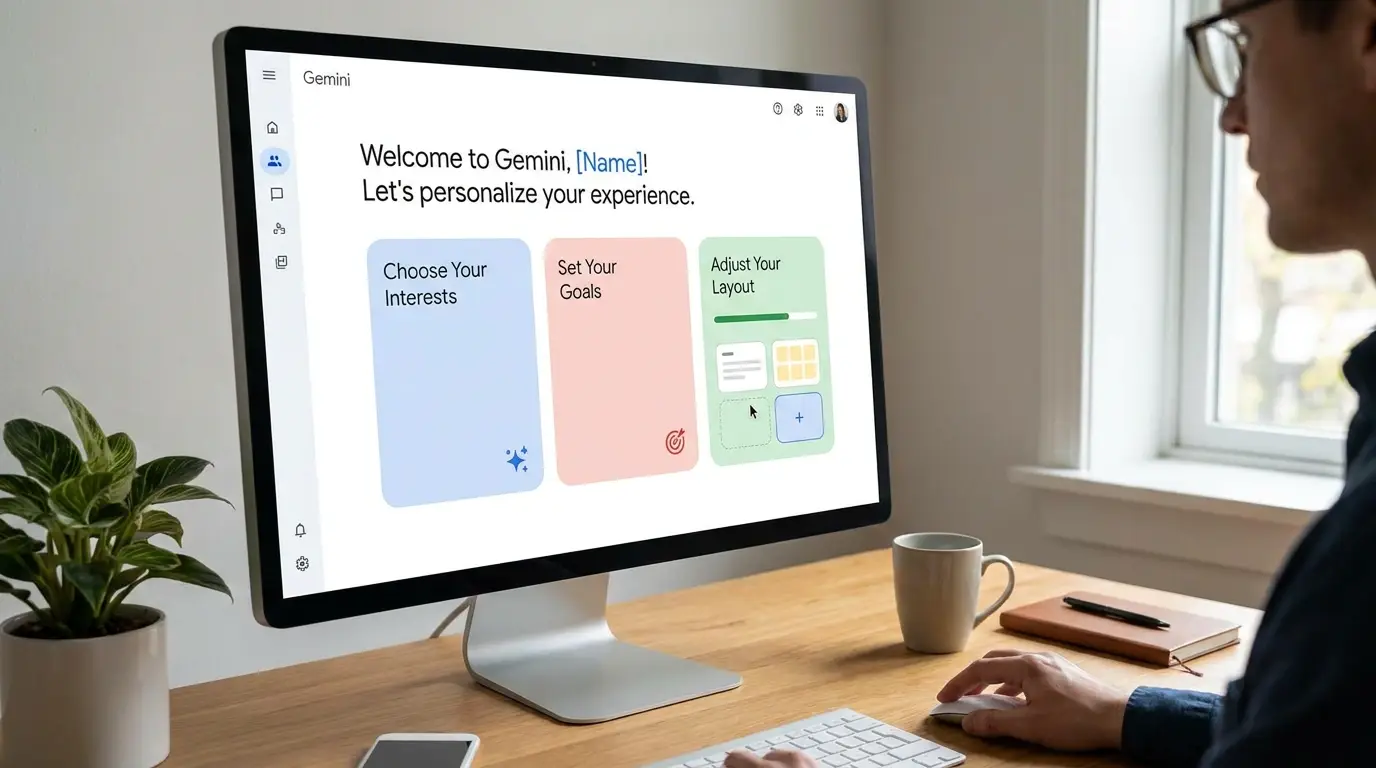
To truly get the most from Google Gemini, develop a strategic approach to how you interact with it. Think of it less as a tool to query and more as a collaborative assistant that improves with better communication.
Establish Clear Objectives
Before you start a conversation, know what you want to accomplish. Are you researching, creating content, solving a problem, or learning something new? Clear objectives lead to more productive conversations and help you ask better follow-up questions.
Build Conversations Over Time
Rather than asking one question and leaving, develop your thoughts through multiple exchanges. Gemini maintains context throughout a conversation, so you can refine ideas, ask for alternatives, and iterate toward better outcomes. This differs from a search engine, where each query starts fresh.
Name Your Conversations Meaningfully
Rename conversations to reflect their purpose. “Blog post outline – sustainable living” is much more useful than “Conversation 47.” This makes it easy to return to previous work and organize your thinking across multiple projects.
Create Reusable Prompts
If you find a prompt structure that works well for a recurring task, save it somewhere (notes app, document) and adapt it each time. If you regularly ask for writing feedback, develop a template prompt that includes all the context Gemini needs. This consistency produces reliable results.
Combine Gemini with Other Tools
Gemini works best as part of a broader productivity system. Use it alongside other digital tools for your workflow, whether that’s document editors, project management platforms, or other software. Gemini excels at specific tasks—writing, research, coding, analysis—but integrating these outputs into your larger workflow makes them truly valuable.
Respect Limitations and Get Feedback
Be aware that Gemini, like any AI, has limitations. It can make mistakes and occasionally misunderstand nuanced requests. Build in verification and feedback loops—having colleagues review Gemini’s outputs for important work, fact-checking claims, testing code before implementation—to protect against these occasional issues.
If you have feedback about Gemini’s performance, share it through the app. Google uses user feedback to improve the service, and your input contributes to making Gemini better for everyone.
Wrapping Up: Your Gemini Journey Starts Now
Google Gemini is a remarkably capable tool available completely free to anyone with a Google account. The barrier to entry is nearly zero, and potential applications span writing, research, coding, creativity, analysis, and learning. You’ve now learned the fundamental steps: accessing Gemini, understanding what’s included in the free tier, navigating the interface, and applying it to real-world tasks.
The best way to become proficient is to start using it. Pick one task you’re working on today—whether that’s writing an email, researching a topic, or brainstorming ideas—and try Gemini. You’ll quickly discover its strengths and develop your own preferred ways of interacting with it.
As you grow more comfortable, experiment with advanced features like image generation, file uploads, and web search. Try different prompt structures to see what produces the best results for your needs. Remember that specificity, context, and iteration are your allies when working with Gemini.
If you’re interested in exploring how Gemini fits into a broader ecosystem of AI and productivity tools, you might also benefit from checking out other free AI tools available today. Each tool has unique strengths, and understanding how to combine them multiplies your productivity potential.
Whether you’re a student, professional, creator, or lifelong learner, Gemini offers genuine value right now, completely free. Start your conversation, ask your first question, and begin discovering what this powerful AI can help you accomplish. The learning curve is gentle, the potential is significant, and the cost is zero.
For more information about how we approach technology education and guidance, learn more about our mission and approach. If you have specific questions or feedback, feel free to reach out to our team.